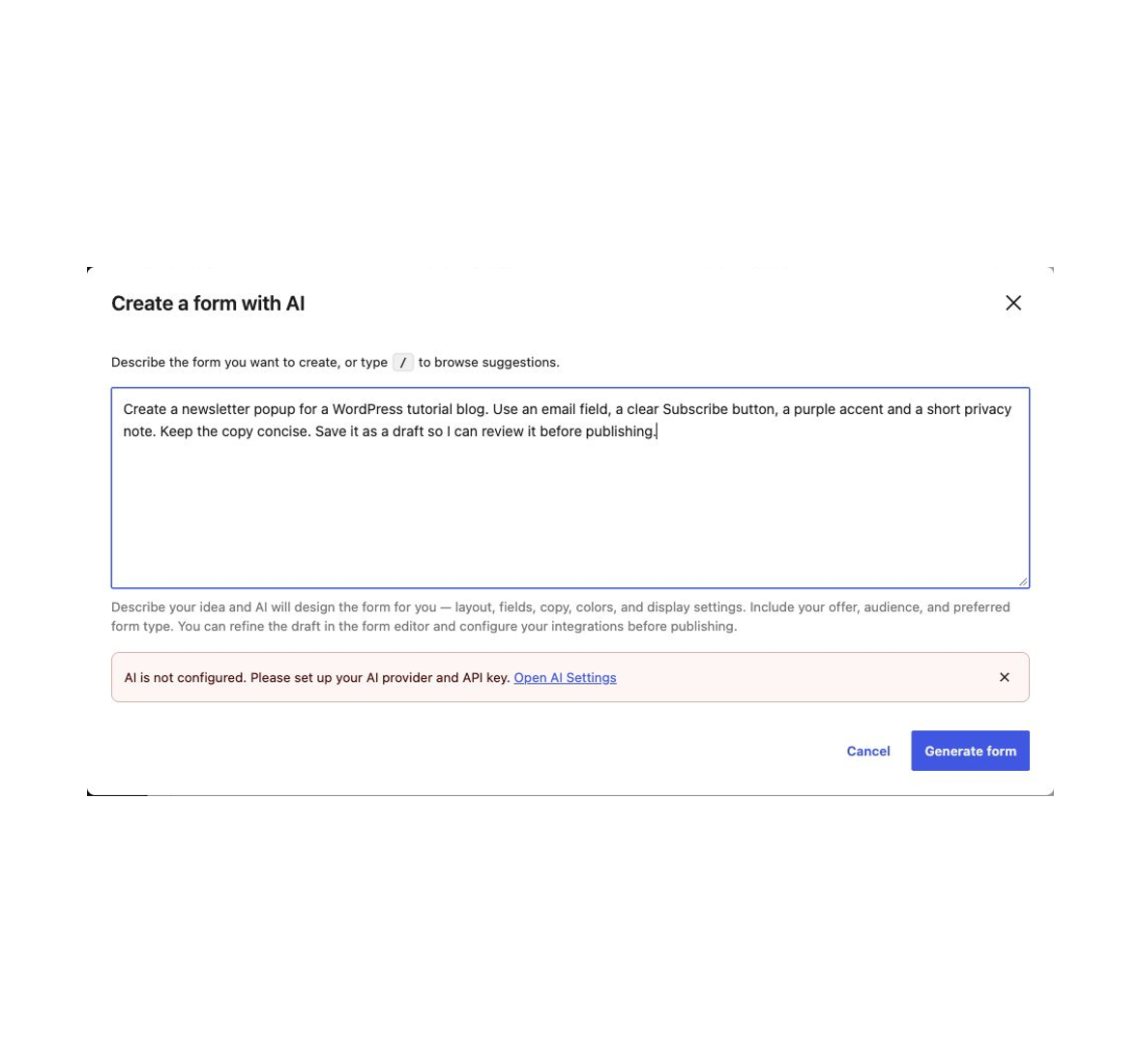
Turn a written brief into a form you can actually edit. OptinFlare brings AI form generation into your native WordPress block workflow.
From your brief to an editable form
Requires OptinFlare Pro and a configured AI provider with your own API key. Provider usage is billed separately under your provider’s terms.
01
Start with your offer
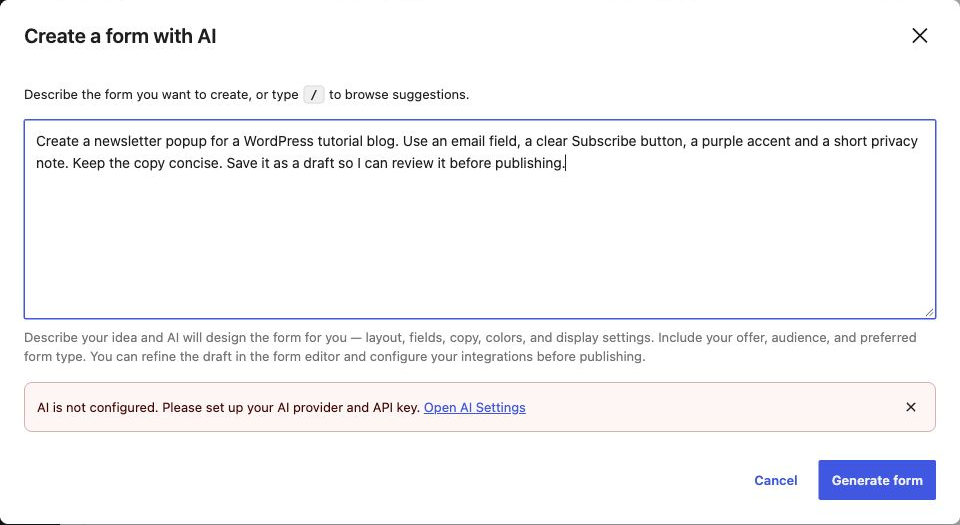
Describe your audience, the benefit of subscribing, the fields you need and the visual direction. A useful brief gives the generator a concrete starting point.
02
Use a prompt suggestion
Type / to browse suggestions for newsletters, welcome offers, guides, waitlists and announcement bars. Adapt the suggested brief to your actual offer.
03
Choose your AI provider
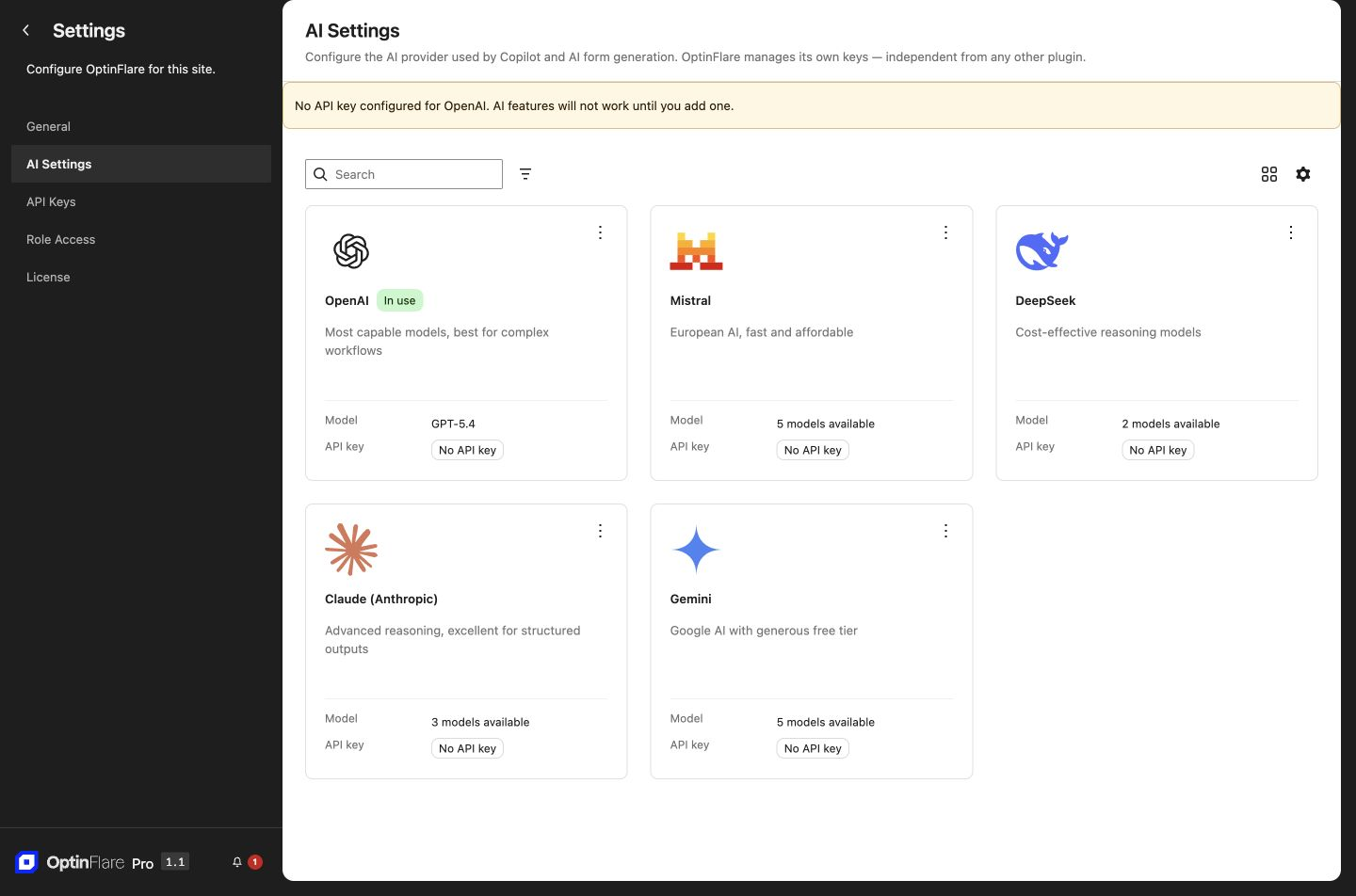
Configure OpenAI, Mistral, DeepSeek, Anthropic or Gemini in OptinFlare’s AI settings. OptinFlare keeps this configuration independent from other plugins.
04
Keep editing with blocks
Review the generated form in the native WordPress block editor. Change the copy, fields, layout and colors instead of being locked into an AI-only editing screen.
05
Review before publishing
Check the display settings, connect your newsletter destination and preview the form on your site. Generating a draft does not replace your publication decision.
Take the full tour
Tap a screenshot to open the full-size image in a new tab and zoom in on the details.
Top 3 reasons you’ll love OptinFlare
Design
Build popups, fly-ins, bars and inline forms in the native block editor, with your theme styles and previews for desktop, tablet and mobile.
Target
Show a form after a delay, on scroll, on exit intent or on a click. With Pro, display rules by page, device, referrer and UTM parameter for popups, fly-ins, bars and fullscreen forms.
Convert
Send each sign-up to your newsletter plugin or email service. No email service yet? Sign-ups are stored in WordPress.
Put it to work on your site
Describe what is real
Specify the benefit and any genuine offer conditions. Review generated claims, links and dates before showing the form to visitors.
Connect your destination
AI generation designs the form. You still choose and configure the submission actions that send sign-ups to your newsletter tool.
Check every screen size
Use the editor’s desktop, tablet and mobile previews. A useful first draft still needs a final check against your own content and theme.
Keep your existing workflow
A generated opt-in remains an editable form. Use the normal controls for its status, display behavior and later updates.




You have a question? We’ve got you covered.
Practical answers before you start.
AI form generation requires OptinFlare Pro. You also need to configure an AI provider and your own API key in OptinFlare’s AI settings.
You connect your own provider account. Model availability, usage limits and charges come from that provider; an OptinFlare license does not include provider credits.
The generated form is a draft you can review and edit. Check its content, destinations and display settings before publishing it yourself.
Yes. Refine it in the native WordPress block editor. The AI is a starting point for the copy and design, not a separate format you must keep.
Didn’t find your question?
Get ready with OptinFlare
Documentation
Step-by-step guides for every screen of OptinFlare, from your first form to the REST API.
Help & Support
Questions about your license or a form that won’t show? Find answers or contact us.
Changelog
Every version of OptinFlare, with what it adds and what it fixes.