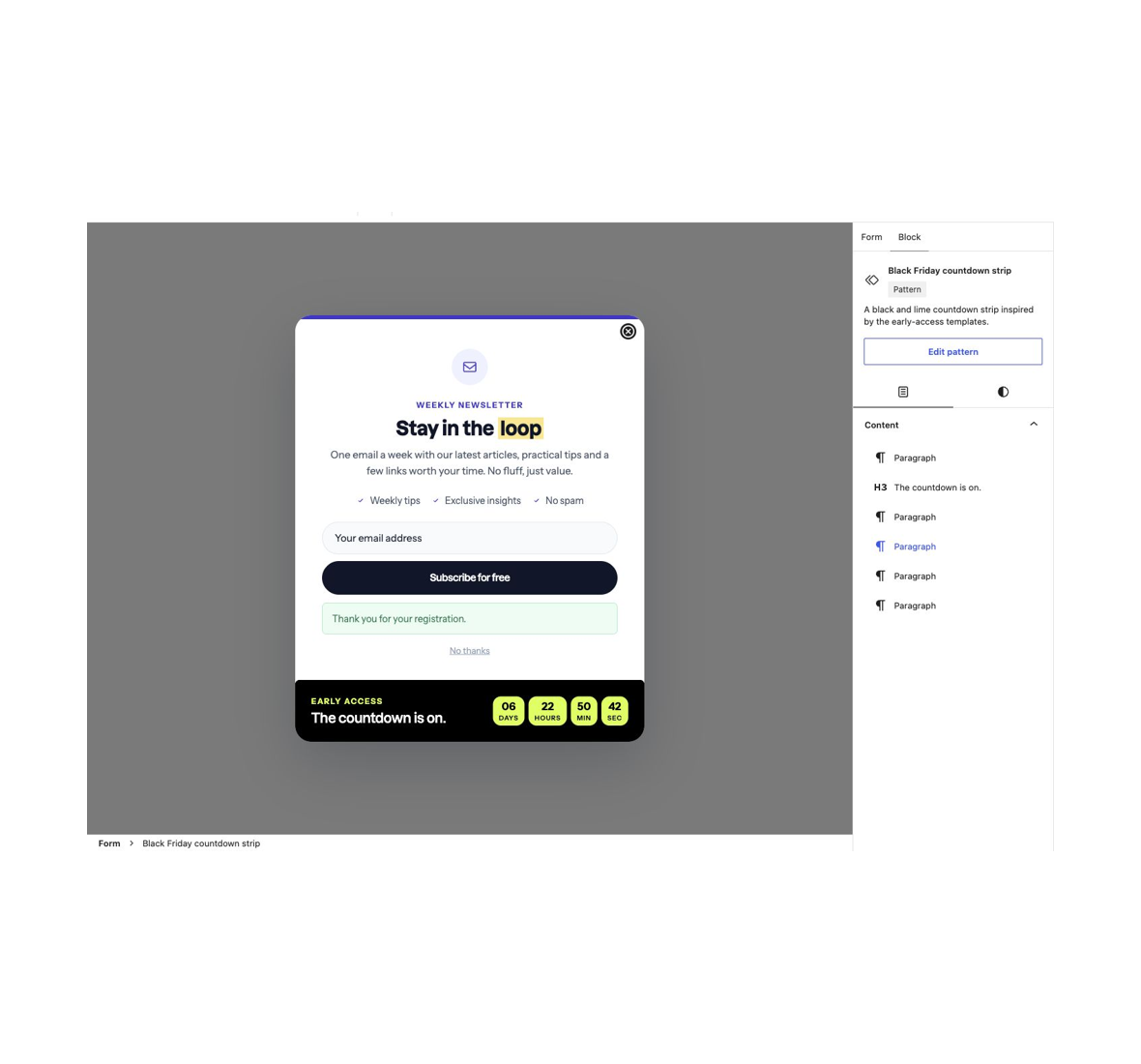
Make a real deadline visible inside your form. Build a countdown with editable units and labels instead of adding a separate timer widget to the page.
Make your deadline visible
Use the Countdown block available in your OptinFlare editor. Review the timer alongside the offer’s actual deadline and conditions before publishing.
01
Add the Countdown block
Insert Countdown from the block library or start with a timer composition. Keep the countdown inside the same editing workflow as the rest of the form.
02
Choose the end date
Use the End date control to reflect your actual deadline. The editor also describes its default seven-day behavior when no date is set.
03
Edit units as blocks
The countdown’s days, hours, minutes, seconds, values and labels are nested blocks. Arrange and style the parts in the editor rather than treating the timer as one image.
04
Start with a ready-made strip
The pattern library includes a Black Friday countdown strip and a discount ticket with timer. Adapt their content and styling to your own campaign.
05
Check the complete offer
Preview the form at different screen sizes and confirm that the displayed deadline matches the campaign. The timer does not replace scheduling or coupon configuration.
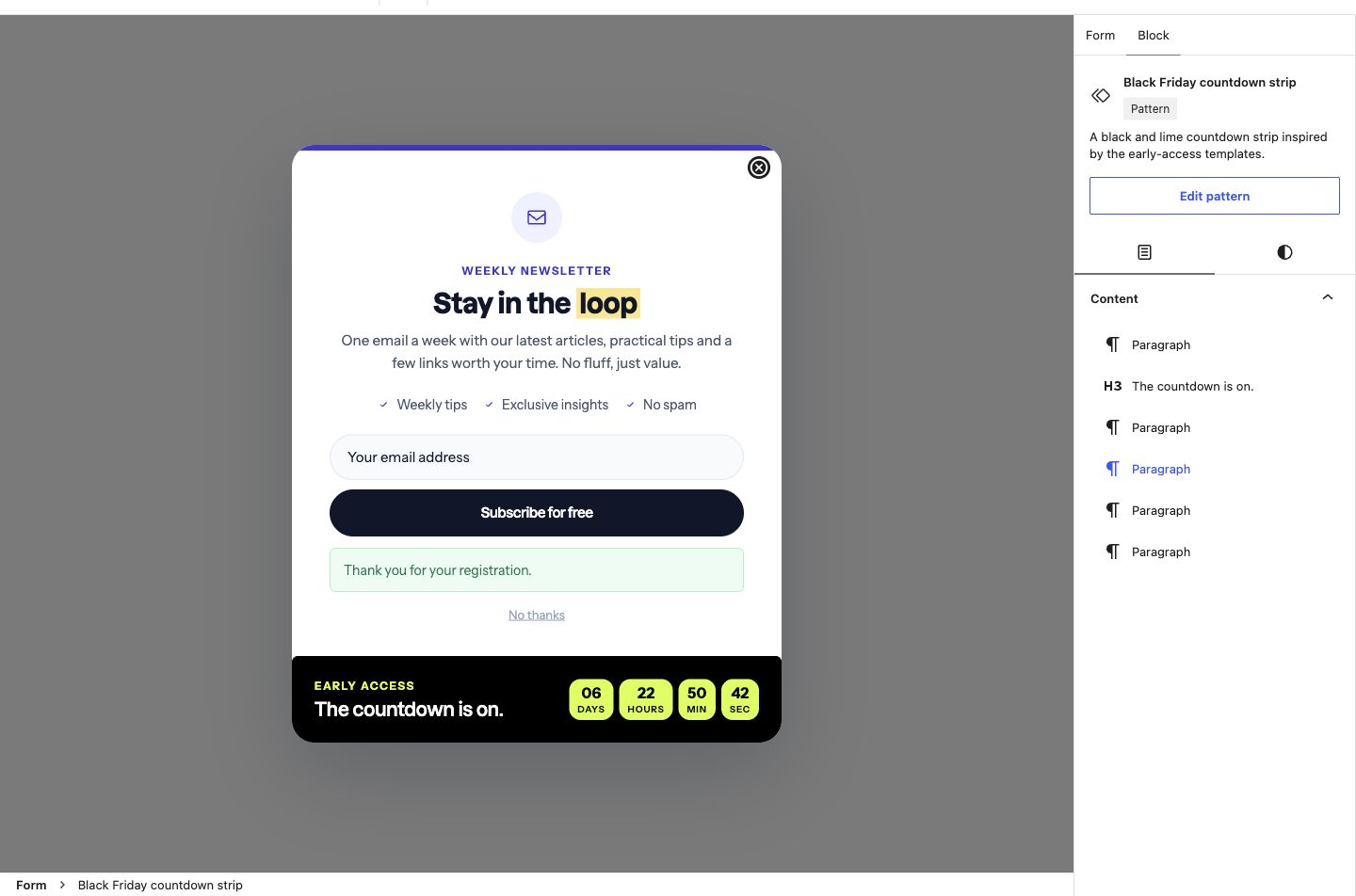
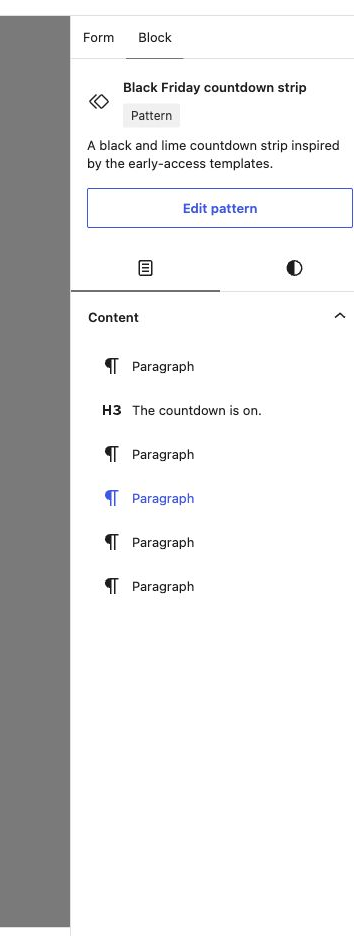
Take the full tour
Tap a screenshot to open the full-size image in a new tab and zoom in on the details.
Top 3 reasons you’ll love OptinFlare
Design
Build popups, fly-ins, bars and inline forms in the native block editor, with your theme styles and previews for desktop, tablet and mobile.
Target
Show a form after a delay, on scroll, on exit intent or on a click. With Pro, display rules by page, device, referrer and UTM parameter for popups, fly-ins, bars and fullscreen forms.
Convert
Send each sign-up to your newsletter plugin or email service. No email service yet? Sign-ups are stored in WordPress.
Put it to work on your site
Use a genuine deadline
Explain what ends and when. A countdown should clarify the offer’s conditions rather than imply a deadline that does not exist.

Keep labels readable
Check unit labels, spacing and contrast on narrow screens. Make the benefit and call to action readable alongside the timer.
Separate timer and schedule
The countdown displays time. If the form must stop appearing at a specific moment, configure the relevant campaign display rules separately.
Separate timer and discount
Adding a timer does not create a WooCommerce coupon or deliver an email. Configure any discount and submission actions as separate parts of the offer.




You have a question? We’ve got you covered.
Practical answers before you start.
Yes. The native editor exposes the units, values and labels as blocks, alongside the End date setting. You can adapt their arrangement and presentation.
The current editor states that, without an end date, the countdown runs seven days from the visit. Set an explicit date when your offer has a shared deadline.
Do not use the timer as a substitute for display scheduling. Configure the campaign’s availability separately and test the behavior when its deadline is reached.
No. The countdown is a visual part of the form. Coupon creation, validity and any email delivery need their own configuration.
Didn’t find your question?
Get ready with OptinFlare
Documentation
Step-by-step guides for every screen of OptinFlare, from your first form to the REST API.
Help & Support
Questions about your license or a form that won’t show? Find answers or contact us.
Changelog
Every version of OptinFlare, with what it adds and what it fixes.