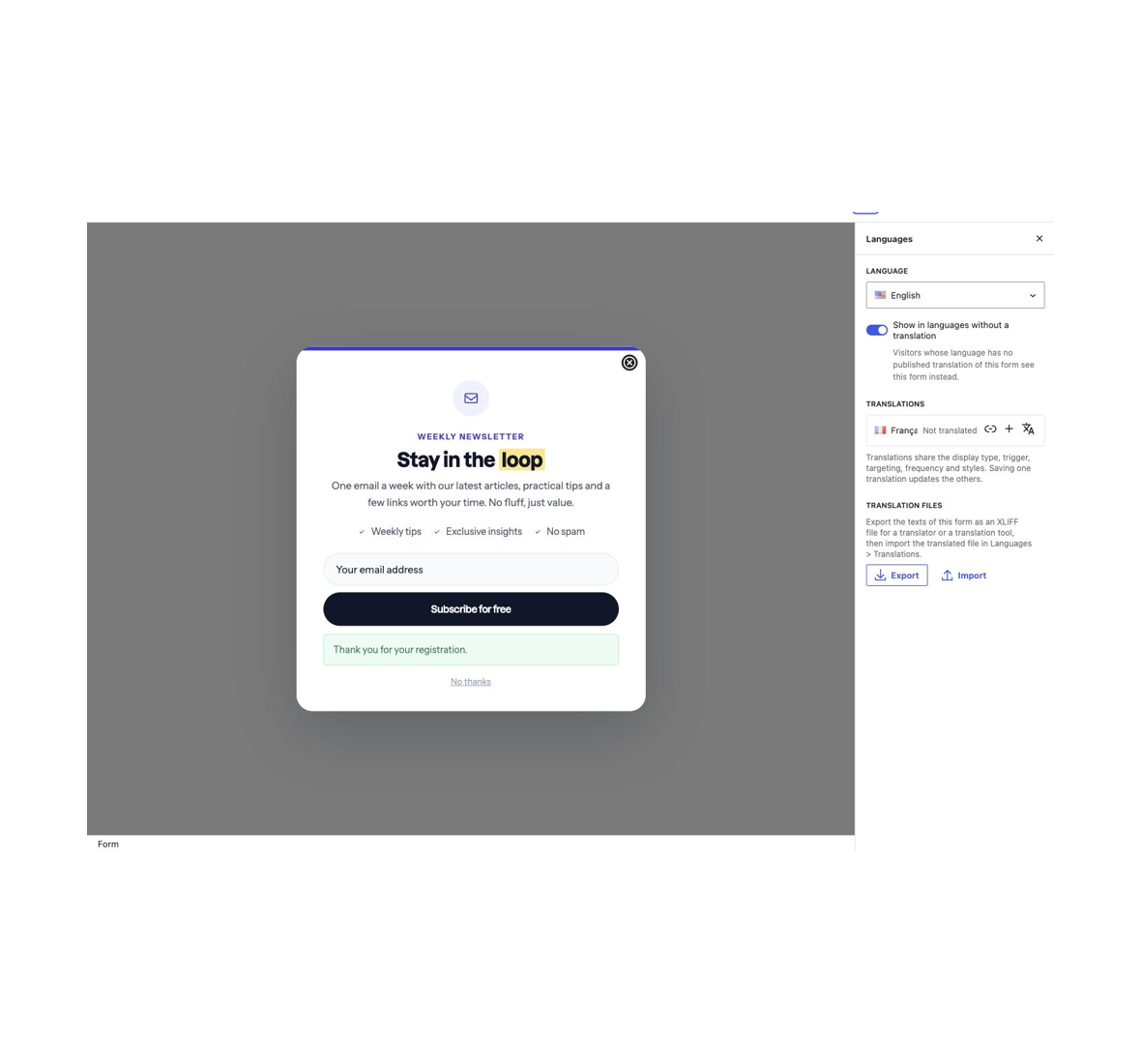
Let the same offer speak your visitor’s language. Manage connected form translations without rebuilding their shared display rules for every language.
Keep language versions connected
Requires Polylang for language management. Premium targeting depends on Pro, and automatic translation options depend on your translation setup and service configuration.
01
Assign a form language
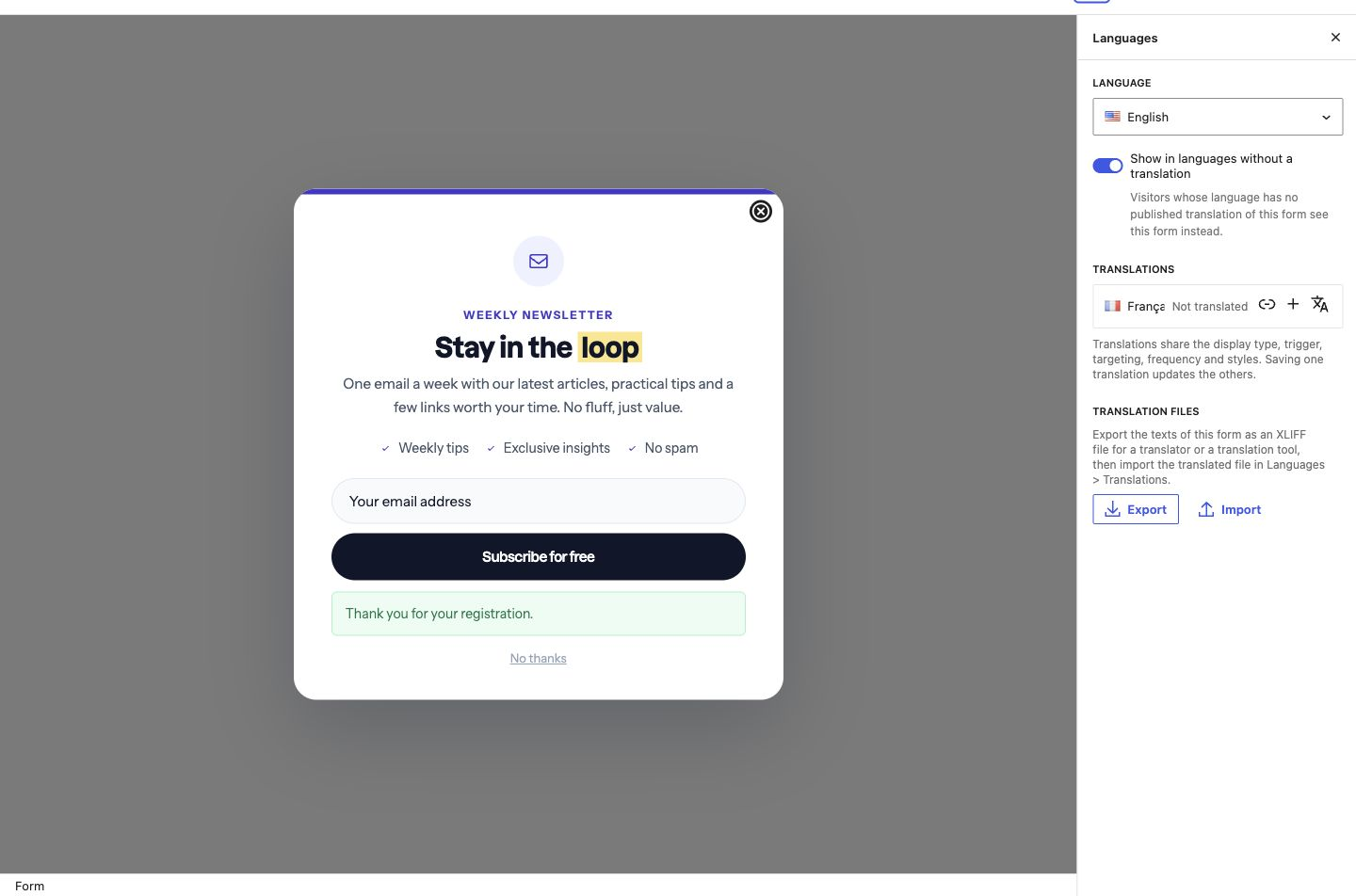
Use the Languages panel to choose the form’s language. The form list also shows its language and available translations so versions remain easy to find.
02
Create or link a translation
Add a version for a configured language or link an existing form. Review the translated text and offer instead of maintaining unrelated copies.
03
Share display behavior
Connected translations share display type, trigger, targeting, frequency and styles. Saving a translation can update those shared settings in the other versions.
04
Choose a fallback
Decide whether visitors in a language without a published translation should see the source form. A missing or unpublished translation should be a deliberate choice.
05
Use your translation workflow
The panel exposes translation-file actions and the translation options available in your setup. DeepL availability and configuration belong to your translation tooling.
Take the full tour
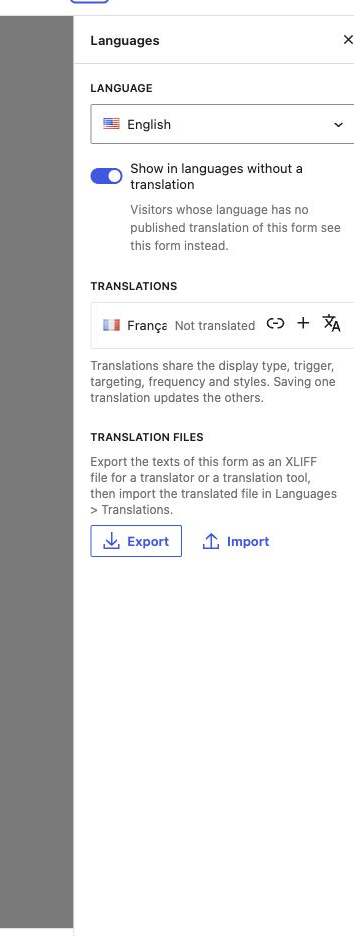
Tap a screenshot to open the full-size image in a new tab and zoom in on the details.
Top 3 reasons you’ll love OptinFlare
Design
Build popups, fly-ins, bars and inline forms in the native block editor, with your theme styles and previews for desktop, tablet and mobile.
Target
Show a form after a delay, on scroll, on exit intent or on a click. With Pro, display rules by page, device, referrer and UTM parameter for popups, fly-ins, bars and fullscreen forms.
Convert
Send each sign-up to your newsletter plugin or email service. No email service yet? Sign-ups are stored in WordPress.
Put it to work on your site
Translate more than the headline
Review field labels, buttons, messages and linked content. An understandable form also needs an offer and follow-up experience appropriate to that language.
Review shared settings
Before changing frequency, styles or display rules, remember that linked translations share them. Translate content without accidentally changing the whole campaign’s behavior.
Check published versions
Verify the status and preview of each language. The fallback applies when the visitor’s language has no published version, not simply when a translation record exists.
Keep premium targeting in context
Pro extends the targeting available to your forms. Language versions do not by themselves unlock premium rules or replace your configured consent permissions.




You have a question? We’ve got you covered.
Practical answers before you start.
This workflow uses Polylang. The page does not claim compatibility with every translation plugin; use the language tools exposed by your installed setup.
Yes. Create or link the language version, then edit its text. Automatic translation is an additional option when your translation setup provides and configures it.
The Languages panel lets you choose whether the source form is shown in languages without a published translation. Review that fallback before launching the campaign.
Their translated content can differ, but display type, trigger, targeting, frequency and styles are shared. Saving shared settings in one version affects the linked versions.
Didn’t find your question?
Get ready with OptinFlare
Documentation
Step-by-step guides for every screen of OptinFlare, from your first form to the REST API.
Help & Support
Questions about your license or a form that won’t show? Find answers or contact us.
Changelog
Every version of OptinFlare, with what it adds and what it fixes.